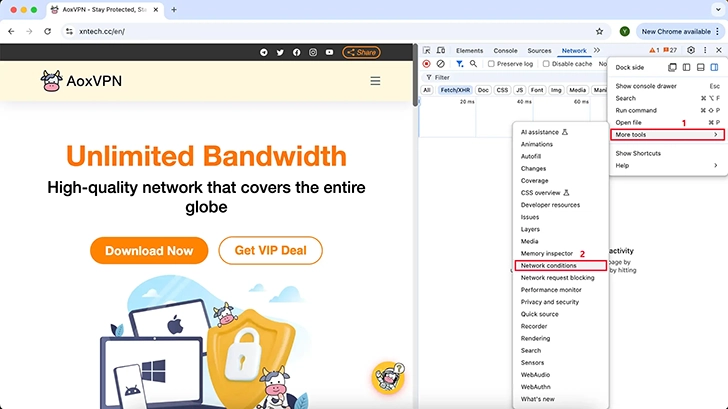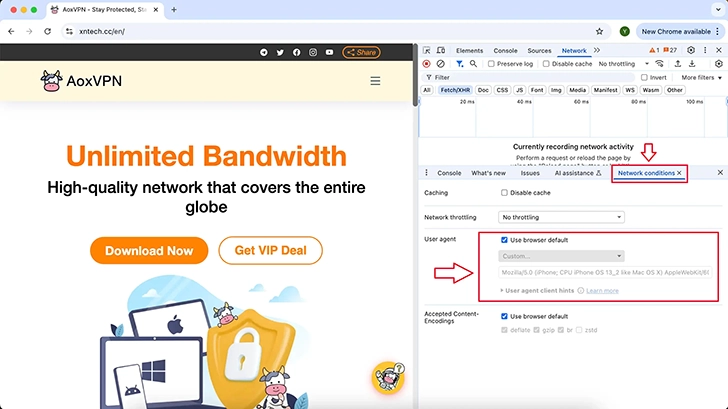
Click on the WIFI icon > More menu > More tools > Network conditions.
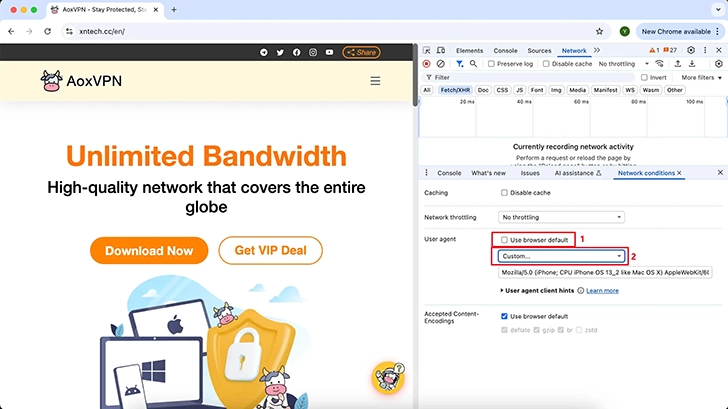
In the Network conditions tab, under User agent, uncheck [Use browser default].
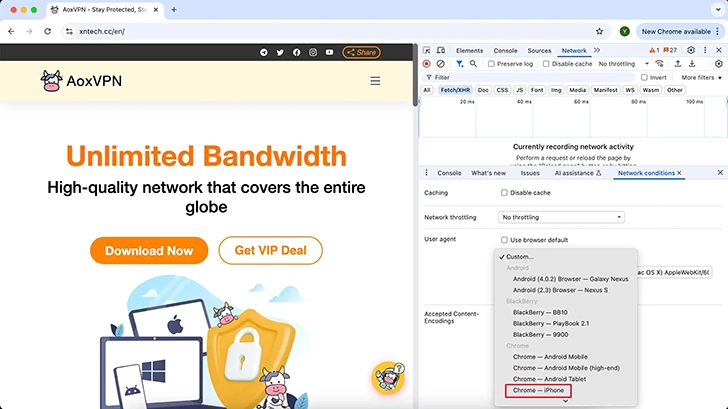
Change the Custom selection to [Chrome - iPhone].
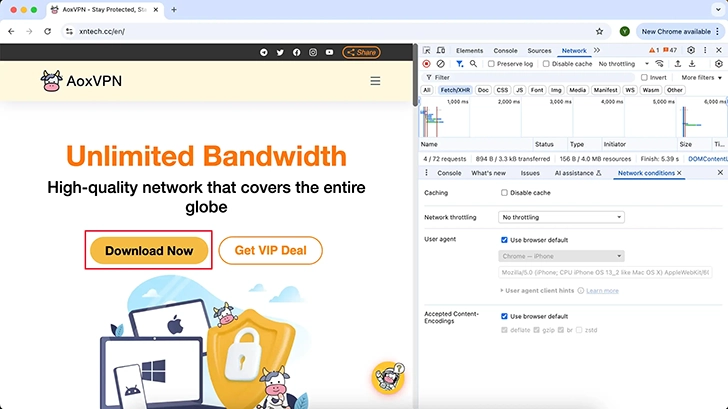
Click the [Download Now] button.
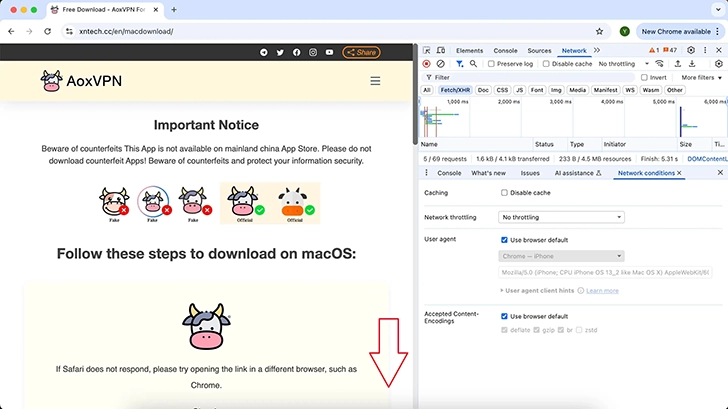
On the Mac download page, scroll down to the bottom.
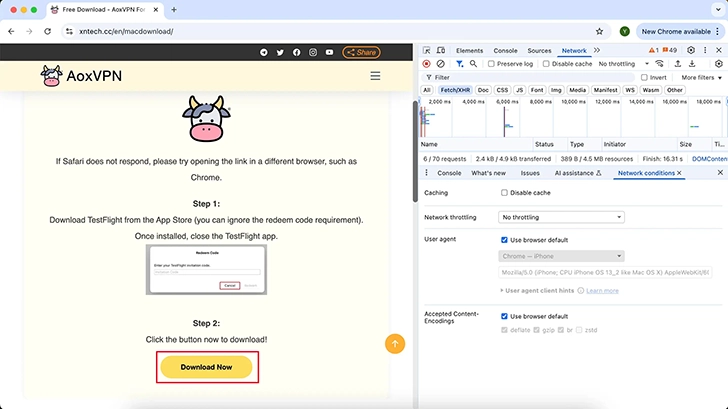
Click [Download Now] again; it will redirect you to a QR code page.
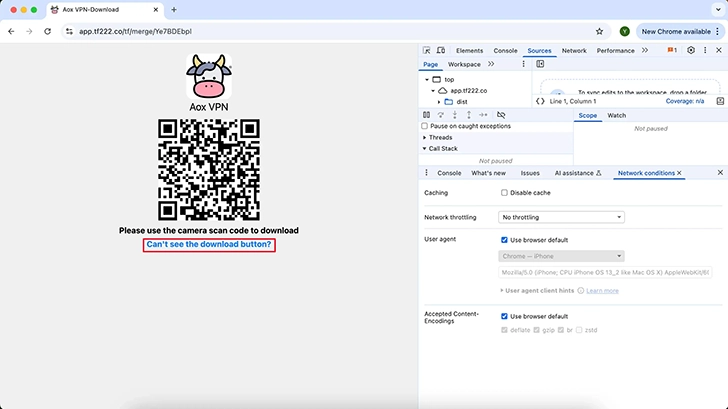
Click [Can't see the download button?]
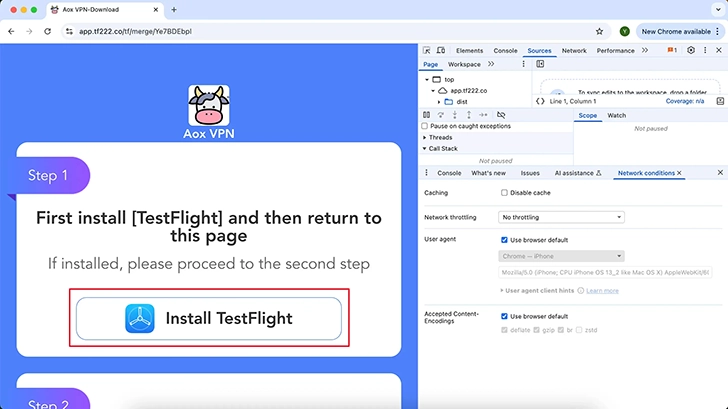
Click [Install TestFlight].
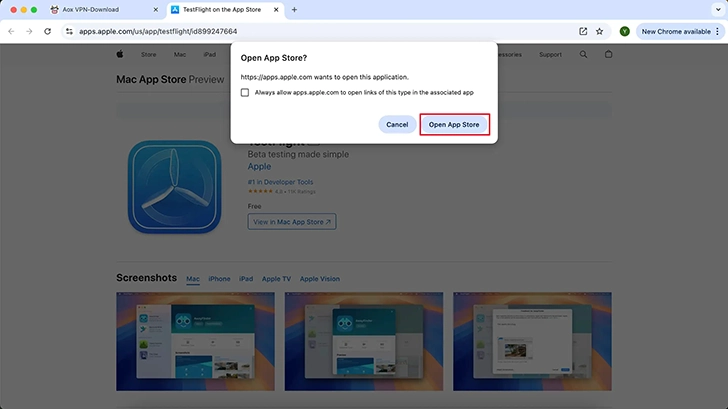
On the Apple Store page, click [Open App Store].
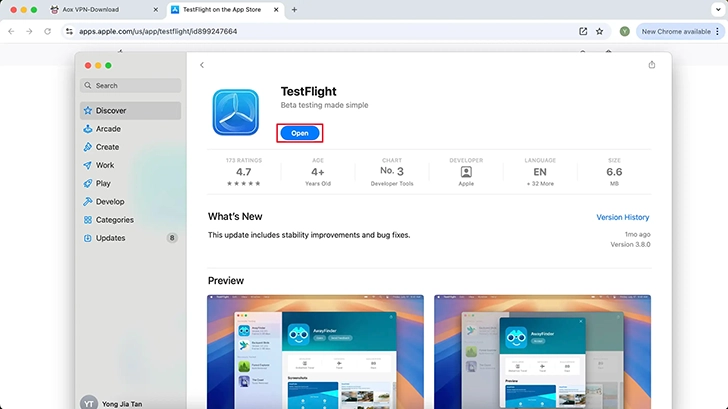
When you see the TestFlight app, click [Install] or [Open].
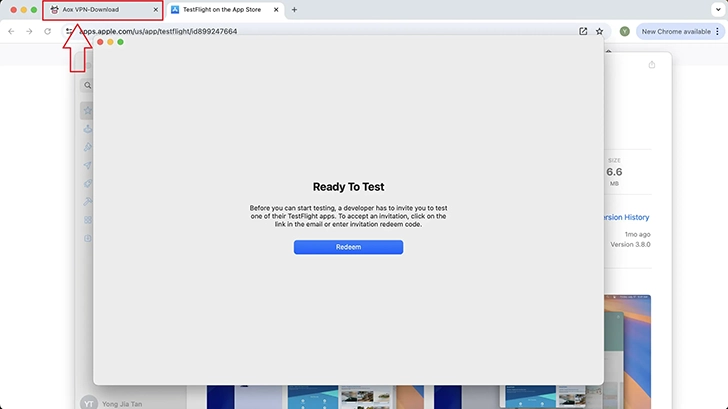
After installing or opening TestFlight, return to the AoxVPN website.
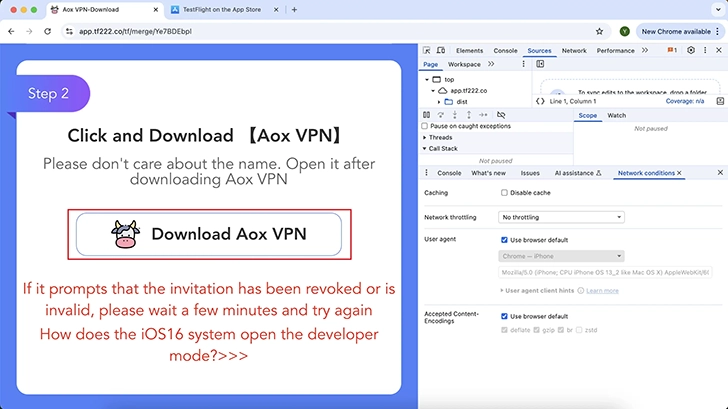
Click Step 2: [Download AoxVPN].
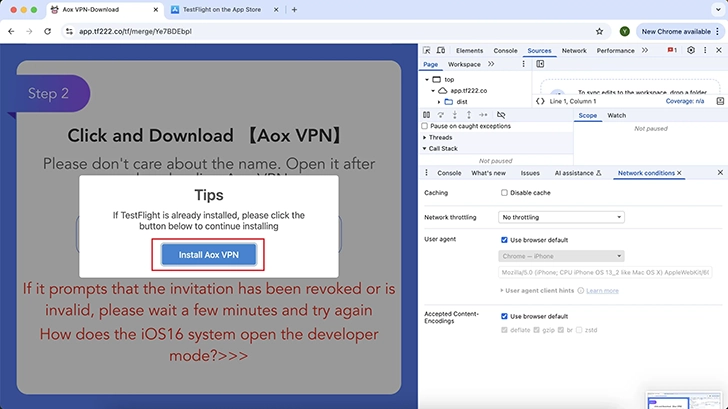
In the prompt window that appears, click [Install AoxVPN].
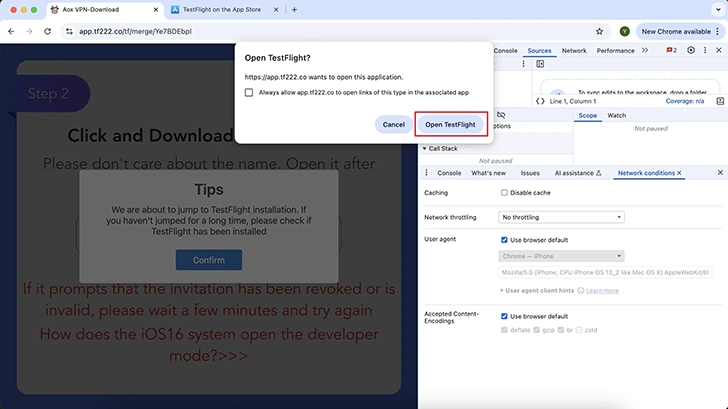
Click [Open TestFlight].
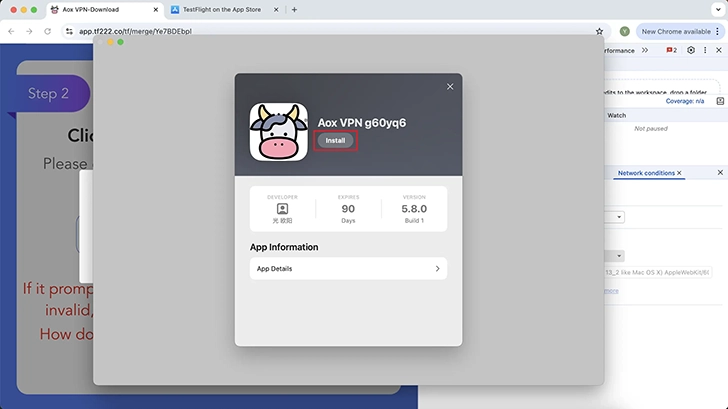
When you see AoxVPN in TestFlight, click the [Install] button. Completed! You can now start using the service.
Our team is available from 9:00 AM to 6:00 PM, Monday to Friday.
If you message outside of this time, we’ll respond as soon as we’re back!
 AoxVPN